
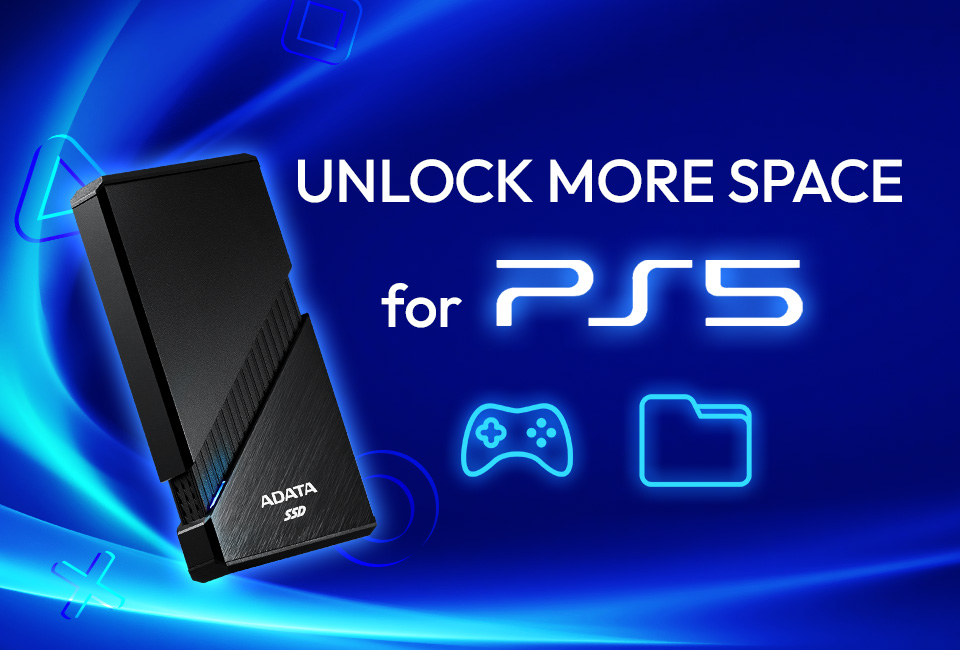
A common concern among PlayStation 5 owners is can you play ps5 games on external ssd. With modern games using more storage, the PS5’s internal drive can fill up quickly, leading gamers to consider external storage options. External SSDs promise speed and extra capacity, but not all storage options work the way you might expect with PS5 titles.
In this article, “Truth About External SSDs: Can You Play PS5 Games on External SSD?”, we’ll uncover the facts, clear up misconceptions, and explain the best way to expand your storage without compromising performance.
Common Misconceptions About External SSDs
When using an external SSD with your PS5, it’s important to know what they can and cannot do to avoid common misconceptions.
Myth 1: External SSDs make PS5 games load faster
Reality: External SSDs can make PS4 games load faster, but they cannot speed up PS5 games. To play PS5 games at full performance, they must be installed on the internal SSD or a compatible M.2 NVMe SSD. Using an external SSD for PS5 games will lead to slower load times.
Myth 2: You can play PS5 games directly from any USB SSD
Reality: PS5 games cannot run directly from an external USB SSD. You can store PS5 games on an external SSD, but you must transfer them back to the internal SSD or a compatible M.2 SSD to play. This is because external drives cannot meet the speed requirements of PS5 games.
Correct Ways to Use External SSDs
PS4 Games: Can be played directly from an external SSD.
PS5 Games: Must be stored on the internal SSD or a compatible M.2 SSD.
Game Management: Use external SSDs to store PS5 games you don’t play often, and transfer them back to internal storage when needed.
Understanding these rules helps you manage your PS5 storage efficiently and ensures the best performance for your games.
Why PS5 Games Can’t Run on External SSDs
PS5 games are designed to use the console’s super-fast internal SSD or a compatible M.2 SSD. These drives let games load almost instantly, display large textures smoothly, and run without lag or stuttering.
External SSDs are faster than regular hard drives but connect through USB, which makes them slower than the internal SSD. This means they can’t handle the speed needed for PS5 games. You can use external SSDs to store games, backups, and media, but playing PS5 games from them would cause slower loading and less smooth gameplay.
External SSDs are good for storage, but only the internal or M.2 SSD can run PS5 games at full speed.
What External SSDs Can Do
Store PS5 Games for Later Transfer
You can save PS5 games on an external SSD. You can’t play games from the external SSD, but moving them back to the internal or M.2 SSD is faster than re-downloading.
Back Up Game Saves, Screenshots, and Videos
External SSDs are ideal for backing up your game progress and media, keeping saves, screenshots, and videos safe.
Play PS4 Games Directly
PS4 games can be played directly from an external SSD, with faster load times compared to a standard hard drive.
Faster File Transfers
External SSDs offer much faster read and write speeds than HDDs, making game transfers and backups quicker.
What External SSDs Can’t Do
Play PS5 games directly. All PS5 titles must be installed on the internal SSD or a compatible M.2 SSD to run at full speed.
External SSDs are excellent for extra storage, backups, and PS4 gameplay. For PS5 games, however, you still need the internal or M.2 SSD for optimal performance. Understanding these limits helps you manage your PS5 storage efficiently
Tips for Using External SSDs with PS5
Using an external SSD with your PS5 can expand your storage and make managing games much easier. Here’s how to get the most out of it:
Choose a High-Quality External SSD
Choose a good external SSD that’s fast and has enough space. Fast read/write speeds make moving games quick, and choose at least 1 TB for a small game collection or 2 TB+ for a bigger one.
Connect to the Front USB-C Port
For optimal performance, connect your external SSD to the front USB-C port on the PS5. This can help reduce potential connection issues and improve data transfer speeds.
Format the Drive for PS5 Use
Before using the SSD, format it as USB Extended Storage:
Go to Settings > Storage.
Select USB Extended Storage.
Choose Format as USB Extended Storage.
Formatting will erase all existing data, so back up anything important first.
Manage Game Storage Efficiently
PS5 Games: You can store them on the external SSD, but they cannot be played directly. Transfer them back to the internal SSD or a compatible M.2 NVMe SSD to play.
PS4 Games: Can be played directly from an external SSD, with faster load times compared to traditional hard drives.
Safely Eject the Drive
Always safely remove your SSD to avoid data corruption:
Go to Settings > Storage > USB Extended Storage.
Select Safely Remove from PS5.
Wait for confirmation before unplugging the drive.
Following these steps ensures your external SSD is used safely and efficiently, giving you extra storage, faster transfers, and better game management on your PS5.
Recommended External SSDs for PS5
A high-quality external SSD can expand your PS5’s storage, speed up game transfers, and ensure smooth performance. Here are some of the top external SSDs available:
ADATA SC750 External SSD
Read/Write Speeds: 1,050/1,000 MB/s
Features: Lightweight and portable, ideal for mobile use
Compatibility: Works with PS5 and other modern gaming consoles.
Best For: Gamers who want fast, efficient storage and quick transfers for large game files.
The ADATA SC750 External SSD is a portable and versatile storage option. It offers fast performance and works with many devices. Its compact, cable-free design makes it perfect for quick and easy data transfer wherever you go.
ADATA SE920 External SSD
Read/Write Speeds: 3,800/3,700 MB/s
Connectivity: USB4 40Gbps Type-C
Features: Built-in micro fan for effective heat dissipation, ensuring smooth, uninterrupted gaming.
Best For: Gamers who need ultra-fast performance and advanced cooling for long gaming sessions
The ADATA SE920 External SSD offers fast performance, effective cooling, and broad compatibility. It’s a great choice for gamers and professionals who need reliable, high-speed portable storage.
Explore ADATA’s external SSD lineup to find the best fit for your PS5. Whether you prioritize speed, portability, or cooling, these SSDs provide reliable, high-performance storage to enhance your gaming experience.
Conclusion
External SSDs are a great upgrade for PS5 owners, providing extra storage, faster game transfers, better library organization, portability, backups, and improved PS4 game performance. However, PS5 games need to be played from the internal SSD or a compatible M.2 NVMe SSD to achieve full speed and smooth gameplay.
Reliable drives like the ADATA SC750 or SE920 make it easy to expand your storage without compromising convenience, allowing external SSDs to handle storage and game management while the internal or M.2 SSD delivers high-performance gaming.

